Deep MIB - 2D Instance Segmentation (SOLOv2, StarDist)
Training and application of networks that find every object individually in 2D images. Two architectures are available; choose by the shape of the objects:
- SOLOv2 - objects of any shape: elongated, branched, bent or irregular, such as cells with protrusions or organelles.
- StarDist - round or oval objects, such as nuclei, round cells or vesicles, also when they are packed densely and touch each other. A pretrained model for fluorescent nuclei can be used without training, or fine-tuned with few annotated images.
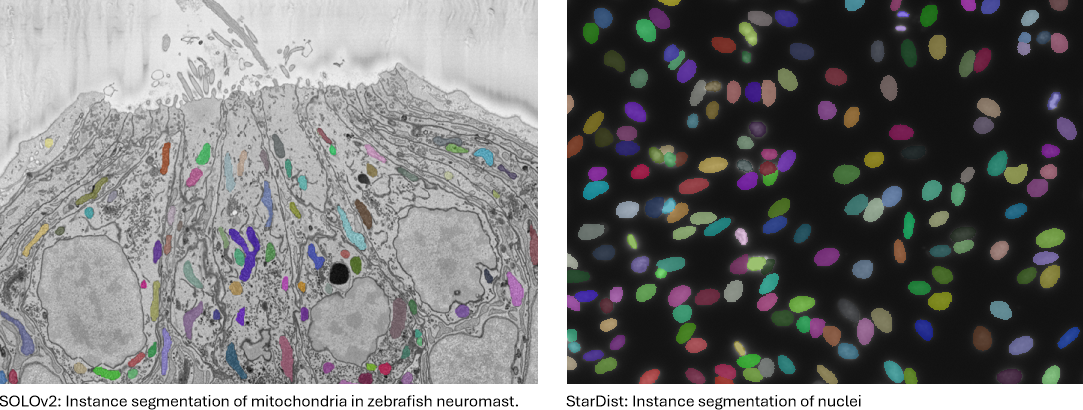
Examples of 2D instance segmentation using SOLOv2 and StarDist architectures
Overview
Unlike the semantic workflows, which assign every pixel to a class (all objects of the same type share one label), instance segmentation detects each object individually: every object receives its own distinct label, so touching or overlapping objects of the same type are separated.
The procedure follows the same three phases as the other workflows, with one difference: instance segmentation requires a preprocessing step before training.
- Preprocess the ground-truth models into instance label files (Directories and Preprocessing tab, see Preprocessing).
- Train the network (Train tab, see Training).
- Predict new datasets and export the detected objects as MIB models (Predict tab, see Prediction). The result can then be evaluated against ground-truth labels, and objects predicted on serial sections can be merged into 3D objects.
For nuclei in fluorescence images, StarDist can skip steps 1 and 2, see StarDist: prediction without training.
Architectures
| SOLOv2 | StarDist | |
|---|---|---|
| Object shapes | any | round or oval |
| Image channels | 3; grayscale images are converted to RGB | as in the images, e.g. 1 for grayscale |
| Starting weights | pretrained on everyday photos (COCO) | pretrained on fluorescent nuclei, or random |
| Large images | processed in tiles, objects stitched across the tiles | processed in tiles, nothing to stitch |
| Requires | SOLO V2 support package | - |
SOLOv2
SOLOv2 (Segmenting Objects by Locations) places a grid over the image. Every grid cell that holds the centre of an object predicts the whole mask of that object, together with a confidence score; masks predicted more than once for the same object are removed. The image features come from a ResNet encoder (Resnet18 or Resnet50) pretrained on COCO, a large collection of everyday photographs. Because the masks are predicted directly, the objects may have any shape.
Support package required
SOLOv2 requires the Computer Vision Toolbox Model for SOLO V2 Instance Segmentation support package. To install this support package, use the Add-On Explorer.
StarDist
StarDist uses a U-Net that predicts two maps for every pixel: the probability that the pixel lies inside an object, highest at the object centre, and the distances from the pixel to the object edge along a fixed set of directions (rays). Every pixel with a high probability thereby proposes a star-shaped polygon, and of the overlapping proposals of one object only the most confident is kept. Touching objects separate well, because each has its own centre.
The polygons work for star-convex objects, whose whole edge can be seen in a straight line from the centre: round or oval shapes. For objects with arms, holes or strongly bent shapes use SOLOv2. Whether your objects suit StarDist can be tested on the training labels, see Starting weights.
Compatible source datasets
- Images: 2D images.
- SOLOv2: 1 (grayscale) or 3 (RGB) colour channels; grayscale images are converted to RGB automatically.
- StarDist: any number of colour channels, the same in all images; the images are used with their own channels.
- Ground-truth labels: a MIB
.modelfile per image (or a single.modelfile for all images when is checked), in which each individual object is painted with its own unique index (1, 2, 3, ...) and the background is0. Touching objects must use different indices to be separated.uint8models allow up to 255 objects per image;uint16models allow many more. - Classes: the current implementation is single-class - every detected object belongs to
one class named
object. The field is not used for this workflow.
Preparing instance labels
Paint each object with its own index in the MIB model, for example using the watershed / object-separation tools.
Network panel
In the Network panel select:
- : 2D Instance
- : SOLOv2 or StarDist
- :
- SOLOv2: Resnet18 (lighter, faster) or Resnet50 (heavier, potentially more
accurate). These map to the pretrained
light-resnet18-cocoandresnet50-cocobackbones. - StarDist: not used.
- SOLOv2: Resnet18 (lighter, faster) or Resnet50 (heavier, potentially more
accurate). These map to the pretrained
The is given as
height width depth colors; the depth is always 1. This size defines the patch cropped
during training: images are processed at native resolution, not downscaled as a whole.
- SOLOv2: width and height multiples of 32, colours
3, for example800 800 1 3. The same size is used for the tiles during prediction. - StarDist: width and height multiples of 16 (32 with a grid of 4), colours equal to the
number of colour channels of the images, for example
256 256 1 1for grayscale images. The tiles used during prediction are set separately, see Prediction.
Note
Use a square input patch size if you intend to enable the 90° rotation augmentations (see the Train tab); non-square patches are not compatible with those augmentations.
StarDist: prediction without training
The pretrained StarDist model 2D_versatile_fluo segments nuclei in fluorescence images and can be used as it is: no ground-truth labels, preprocessing or training are needed.
- In the Network panel select the 2D Instance workflow and the StarDist architecture.
- Confirm Create network from pretrained in the dialog that follows and choose a name for the network file. Later, the same is available in the StarDist settings (the settings button next to ): tick Create a network file from the pretrained model.
- If your nuclei are not about 20 pixels in diameter, set on the Predict tab, see below.
- Segment the images as with a trained network, see Prediction.
The model was trained on nuclei of about 20 pixels in diameter, most of them between 10 and 50
pixels, and works best on nuclei of that size. Measure the diameter of a few typical nuclei in your
images and set to
diameter / 20: for example 2 for nuclei of 40 pixels, 0.5 for nuclei of 10 pixels. The
results are returned at the original image size.
The model expects single-channel images. If it finds too many or too few nuclei, adjust the detection thresholds with Custom in the prediction settings. If it still misses, merges or splits nuclei, annotate a few images and fine-tune the model, see Starting weights.
Preprocessing (required for training)
Instance segmentation does not train directly on MIB .model files: preprocessing first
converts each model into a lightweight MAT-file that stores the 2-D instance label map.
Training then crops native-resolution patches from these maps on-the-fly. Preprocessing is the
same for both architectures.
To preprocess for training:
- Arrange the training data under the training directory (named
1_Trainingin the directory schemes):Images/- the training imagesLabels/- the corresponding.modelfiles (one per image, or a single model file)
- Set to Training.
- Press . Deep MIB converts the models into
LabelsInstances/*.matand then offers to split the files into training and validation sets. Choosing Split labels creates theTrainImages,TrainLabels,ValidationImagesandValidationLabelssubfolders used during training.
Preprocessing writes one .mat per input image (so the file count matches the number of
input models), splitting them into the TrainLabels/ValidationLabels folders.
Preprocessed label file format (LabelsInstances/*.mat)
Each MAT-file is lightweight and contains only two variables:
| Variable | Type | Description |
|---|---|---|
imageFilename |
char |
name of the source image (e.g. 00001.png), used to locate the image in TrainImages / ValidationImages |
instanceLabelMap |
H×W uint16 |
2-D label map - each object a unique index, background 0 |
Storing a compact 2-D label map (instead of a full H×W×N binary mask stack) keeps memory
usage low for large / whole-slide images. Native-resolution training patches are cropped from
this map on-the-fly.
Prediction needs no preprocessing
Only training requires preprocessing. For prediction the network reads the raw images
directly: place the images to segment in the prediction directory (2_Prediction/Images) and
run the Predict tab.
Training
Training is configured and started from the Train tab.
Starting weights
:
- SOLOv2 always starts from the COCO weights; the choice is what happens to the encoder during
training:
COCO, frozen then trainable(default, recommended),COCO, frozen backboneorCOCO, trainable backbone. See the Train tab for details. - StarDist:
- 2D_versatile_fluo - fine-tune the pretrained StarDist model for fluorescent nuclei (grayscale images). It is downloaded the first time it is used. Fine-tuning needs far fewer annotated images than training from scratch.
- None (random) - train a new network.
The settings button next to :
- SOLOv2: the schedule of the two-phase
COCO, frozen then trainabletraining, see the Train tab. -
StarDist: the StarDist settings:
-
Number of rays and Grid - used for a new network only; a pretrained model keeps its own (32 rays, grid 2). More rays follow the outline more closely. A grid of 2 trains faster and suits most objects; use 1 for very small objects.
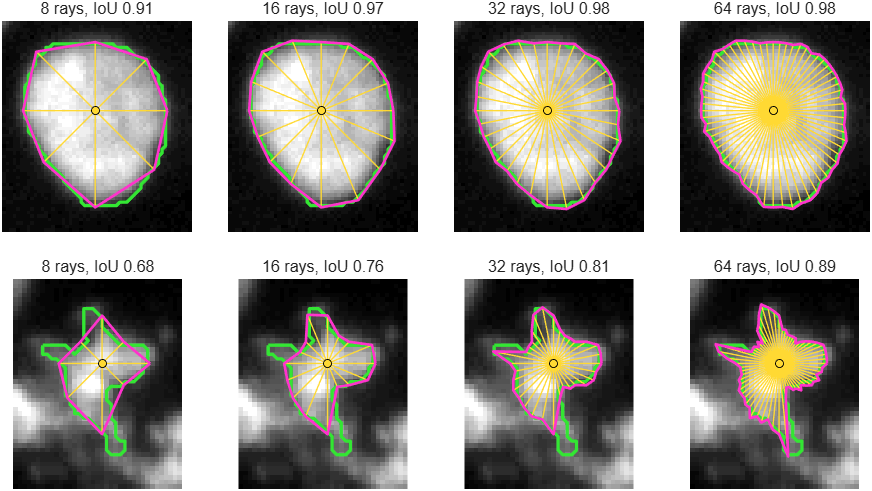
Number of rays: how closely the outline is followed
Each object is drawn as a polygon whose corners lie on rays from its centre (yellow lines); green is the true outline. A round nucleus is matched almost perfectly with 16 to 32 rays. An irregular shape stays inaccurate even with 64 rays: parts that cannot be seen in a straight line from the centre are cut off. 32 rays suit most nuclei.
Grid: the resolution of the predicted maps
The network predicts its maps at
1/gridof the image resolution; the picture shows the probability map it learns, brighter towards the object centres. Grid 2 trains and predicts faster and suits most nuclei. The coarser the grid, the fewer values cover a small object; for objects of only a few pixels across use grid 1.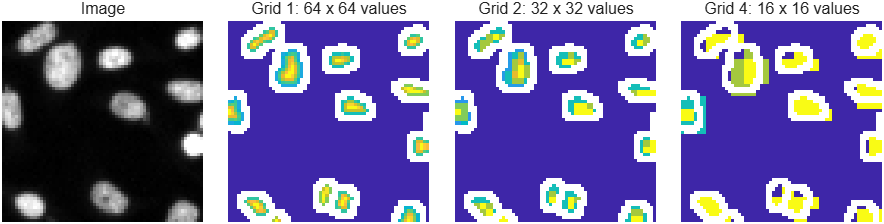
-
Normalisation percentiles - the image intensities are stretched between these percentiles of each image. Keep the default
1and99.8when fine-tuning a pretrained model.Normalisation percentiles: what intensities the network sees
Each image is stretched so that its low percentile becomes black and its high percentile white. This makes dark and bright images look alike to the network (left pair). The high percentile is below
100so that a few very bright pixels do not darken everything else (right pair).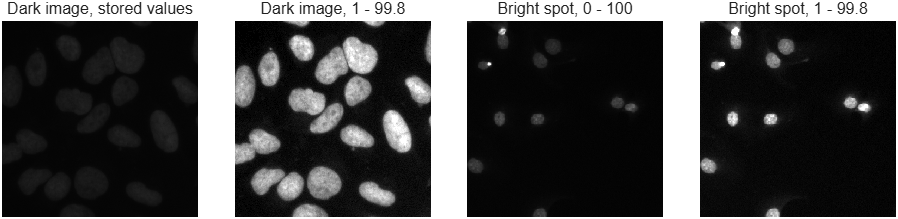
-
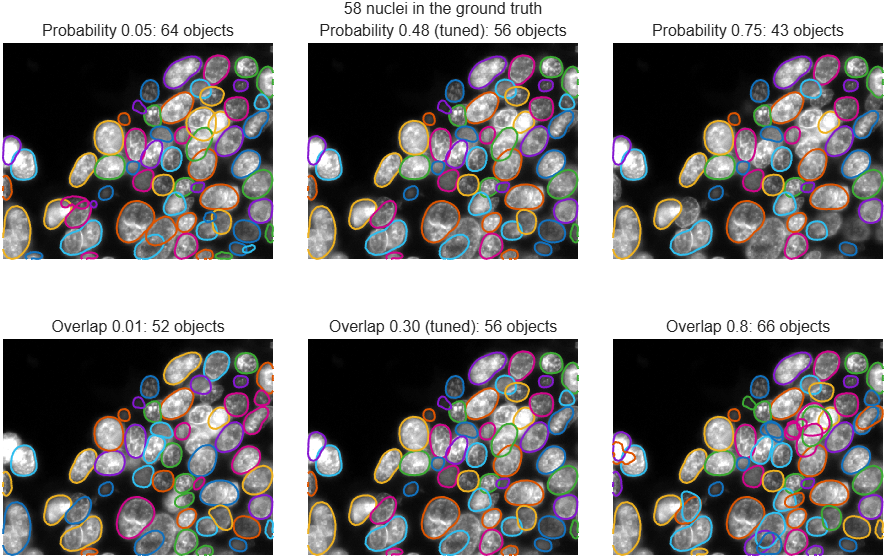
Tune the detection thresholds - after training, the probability and overlap thresholds used to detect objects are tuned on the validation images and stored with the network.
Detection thresholds: what tuning chooses
Two thresholds turn the predicted maps into objects:
- Probability: pixels below it cannot become object centres. Too low adds false objects in the background and on debris; too high misses faint nuclei (top row).
- Overlap: a candidate is removed when it overlaps an already accepted object by more than this fraction. Too low also removes touching neighbours; too high keeps several outlines on one nucleus (bottom row).
Tuning tries many pairs on the validation images and keeps the pair that matches the labels best. The tuned values can be overridden for prediction with Custom in the StarDist prediction settings.
-
Test whether my objects suit StarDist - before training, shows the best StarDist can reach on your objects: each object of the training labels is replaced by the outline StarDist would draw for it with a perfectly trained network, and compared with the original shape, for 8 to 128 rays. Values close to 1 mean the objects suit StarDist; use a number of rays after which the value hardly improves. If even 128 rays give a low value, the objects are too irregular for StarDist; use SOLOv2. The labels must be preprocessed first.
- Create a network file from the pretrained model - see StarDist: prediction without training.
-
Patches and augmentation
- Native-resolution patches: the network trains on patches cropped on-the-fly from the label maps at native resolution (the size of ), not on downscaled whole images. This is essential for large / whole-slide microscopy images, where resizing the whole image to the network input would destroy resolution and hide small objects. Images smaller than the patch are symmetrically padded.
- Patch sampling: each image contributes patches per epoch. ~90 % are object-seeded (a random object is picked and the patch placed with a random offset so the object appears anywhere in the patch, never forced to the centre) and ~10 % are uniform-random (may be pure background).
- Augmentation (): geometric augmentations (reflections, 90°/arbitrary rotation, scale, shear) are applied to the image and its labels together, intensity/colour augmentations (noise, blur, brightness/contrast/hue/saturation jitter) to the image only. Rotated, scaled and sheared patches are filled from the surrounding image; is used only beyond the edge of the image. The augmentation settings are shared with the 2D semantic workflow.
Learning rate
:
- SOLOv2:
0.001with theadamsolver; above about0.003the training collapses, see the Train tab. - StarDist: about
1e-4for fine-tuning a pretrained model; for a new network see below.
Training a new StarDist network
A network trained from None (random) weights needs many small training steps. Recommended settings:
| Setting | Where | Value |
|---|---|---|
| Train tab | 8 |
|
| Train tab | 4 |
|
MaxEpochs |
about 30000 / number of training images, for example 75 for 400 images |
|
InitialLearnRate |
0.003 |
|
LearnRateSchedule |
piecewise, LearnRateDropFactor 0.5, LearnRateDropPeriod one fifth of MaxEpochs |
|
L2Regularization |
0 |
|
| augmentation settings | 0 for images with a dark background |
Training progress
The training progress window shows the training and validation loss for both architectures. The accuracy gauges depend on the architecture:
- SOLOv2: there is no training accuracy (the gauge reads
N/A). A validation accuracy, the mean Average Precision (mAP), is computed when is checked on the Options tab: at each validation the network is run over the whole validation set. This needs a validation set and adds a noticeable cost, so leave it unchecked when the validation loss is enough. If the installed MATLAB version does not support validation for SOLOv2, training automatically retries without validation. - StarDist: the gauges show the core IoU: how well the predicted object centres match the true ones. It does not reach 100% even for a very good network; values of 70-85% are typical for a well-trained one. Whether touching objects are also separated correctly is measured once, after training, when the detection thresholds are tuned; that accuracy is shown when training finishes.
Training parameters for the 2D Instance workflow
| Parameter | Where | Notes / recommendation |
|---|---|---|
| Input patch size | Train tab | height width 1 colors; SOLOv2: multiples of 32, colors 3; StarDist: multiples of 16, colors as in the images. Use a square size to allow 90° rotation augmentations. |
| Encoder | Network panel | SOLOv2 only: Resnet18 (lighter, faster) or Resnet50 (heavier, potentially more accurate). |
| Patches per image | Train tab | number of native-resolution patches sampled from each image per epoch; increase for large images that hold many objects. |
| Mini-batch size | Train tab | patches processed per iteration; bounded by GPU memory. Must be ≤ Patches per image × number of training images. |
| Augmentation | Train tab | enable to apply the shared 2D augmentations (geometric to image + labels, intensity to image only). |
| Number of epochs | Train settings | more epochs = more augmented exposure (each epoch re-crops and re-augments every image). |
| Initial learn rate | Train settings | SOLOv2: 0.001 with adam; StarDist: about 1e-4 for fine-tuning, 0.003 for a new network. |
| Fraction of images for validation | Directories and Preprocessing tab | fraction moved to the validation set during the split; 0 disables validation. |
| Random generator seed | Directories and Preprocessing / Train tab | fix for reproducible splits and training; 0 = new random seed each run. |
Only training uses patch cropping; Patches per image has no effect on prediction (which tiles whole images - see below).
The trained network is saved to the *.mibDeep file specified by
, together with its configuration
(*.mibCfg).
Prediction
Prediction is started from the Predict tab:
- Set to the trained
*.mibDeepfile. - Place the images to segment in the prediction directory (
2_Prediction/Images). - Press .
Images must have the same number of colour channels as the images the network was trained on. Large images are tiled at native resolution. The Instance segmentation subpanel of the Predict tab sets how:
-
SOLOv2: each tile is segmented with a surrounding border of context (controlled by and ), and objects are stitched across tiles. The stitching rule is selected with the dropdown:
- Centroid in core - each object is emitted by the tile that owns its centroid, so there are no duplicates and no seam-splitting. Requires the tile overlap to be at least as large as the biggest object.
- IoU merge - all detections of every tile are kept, and detections from neighbouring tiles are merged into one instance when their masks agree inside the shared overlap band (intersection-over-union test). Objects larger than the overlap are detected piecewise and merged, so only the band width matters - use this mode when objects may exceed the overlap.
The detection confidence threshold, the merge IoU/IoA thresholds and the minimal object area are configured with the subpanel's Settings button - see the Predict tab for details. Two objects that are separated in the image never share an index: in both overlap modes each index is finally split into its separate objects, and components below are discarded.
-
StarDist: there are no tile seams to stitch, so the overlap settings and the overlap mode are not used. The Settings button sets the detection thresholds and the tile size:
- From the network - the thresholds tuned on the validation images after training.
- Custom - lower the probability threshold to detect more objects, lower the overlap threshold to keep fewer overlapping detections.
- Tile size - larger tiles are faster but need more GPU memory; the result does not depend on it.
on the Predict tab makes the objects the size the network was trained on: the images are reduced by this factor before detection, values below 1 enlarge them. Keep
1for a network trained on images of the same resolution; for 2D_versatile_fluo see StarDist: prediction without training. SOLOv2 does not use this factor.
SOLOv2: overlap size vs stitching mode
With Centroid in core, the tile overlap must be at least as large as the biggest object - otherwise an object that never fits fully inside a single tile's field of view will be truncated. Increase for large objects, or switch to IoU merge, which lifts this restriction (the overlap band only needs to be wide enough - a few tens of pixels - for neighbouring tiles to produce consistent masks in it). If IoU merge is selected while is unchecked, a default 5% overlap is applied automatically.
The result is written as a MIB .model file under
3_Results/PredictionImages/ResultsModels, in which every object instance is a unique index
(background 0), matching the input labelling convention.
Both 2D images and z-stacks may be used as prediction images, exactly as in the 2D Semantic workflow:
- a 2D image is predicted directly and saved as a 2D model;
- a z-stack (a multi-page TIF, an HDF5 volume, ...) is predicted slice-by-slice and saved as a single 3D model with the same number of slices.
In both cases the instance indices run 1..N within each slice and are not consistent
between slices - an object continuing through several slices carries a different index on each of
them. Linking them into true 3D objects is done afterwards with
Merge 2D to 3D, which ignores the input indices.
OME-Zarr images can be predicted directly at a chosen pyramid level (see Directories). With Model files set to Zarr3 (BigData model), each image gets an instance model that is opened on the image in the BigData mode, with up to 16383 objects per slice. Merge 2D to 3D does not work with these models, so in a z-stack the objects stay numbered per slice.
Evaluating the predictions
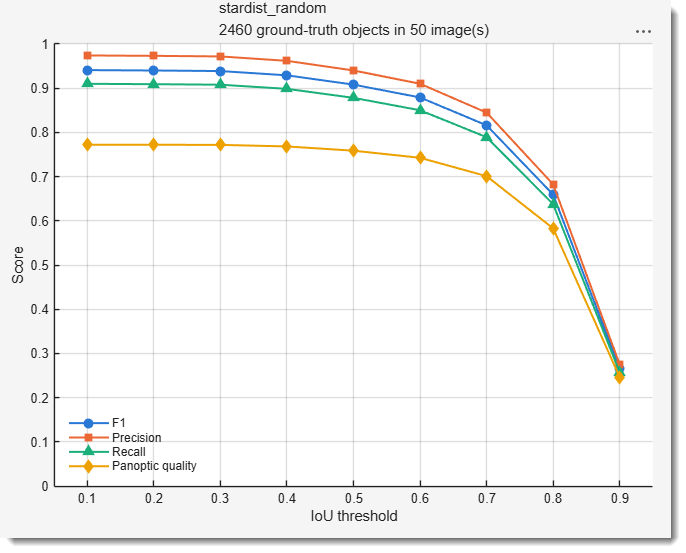
Put the ground-truth labels of the prediction images into 2_Prediction/Labels, one index per
object as for training, and press
in the Predict tab. Each predicted object is matched with at most one ground-truth object; a pair
counts as a match when its overlap (IoU) reaches the threshold. Several thresholds can be typed at
once, e.g. 0.1:0.1:0.9.
Label files are paired with the predictions in alphabetical order, so name them in the same order as the images. Z-stacks are evaluated slice by slice.
F1 at IoU 0.5 is the usual single score; the higher thresholds show how closely the outlines
follow the objects. Per-image values are in the exported tables (MATLAB, Excel or CSV, saved to
3_Results/PredictionImages/ResultsModels).
What the evaluation reports
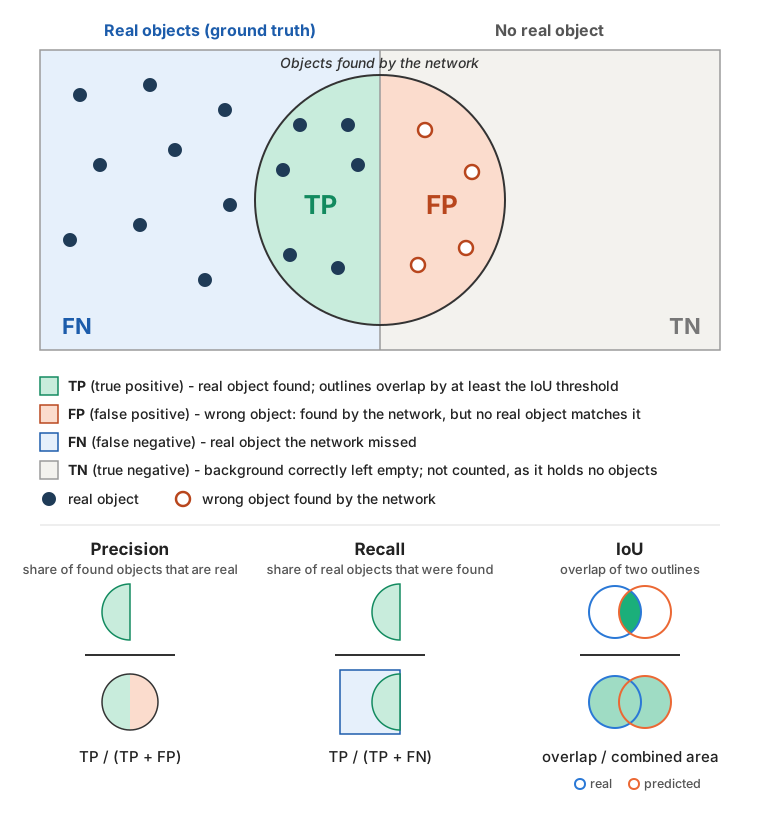
Each predicted object is paired with the real object it overlaps best. The overlap is measured
as IoU (intersection over union): the shared area divided by the area the two objects cover
together; 1 means identical outlines. A pair counts as a match only when its IoU reaches the
threshold, so every real and every predicted object ends up in one of three groups:
- TP, true positive - a real object that was found;
- FP, false positive - a wrong object: found by the network, but no real object matches it;
- FN, false negative - a real object the network missed.
The fourth group of the scheme, TN (true negative, background correctly left empty), holds no objects and is not used by any score.
From these counts, per threshold (all scores between 0 and 1, higher is better):
| Score | Answers | Formula |
|---|---|---|
| Precision | what fraction of the found objects is real? | TP / (TP + FP) |
| Recall | what fraction of the real objects was found? | TP / (TP + FN) |
| F1 | precision and recall in one number | 2 TP / (2 TP + FP + FN) |
| Accuracy | as F1, but stricter | TP / (TP + FP + FN) |
| Mean matched IoU | how well the outlines of the matched pairs fit | average IoU of the TP pairs |
| Panoptic quality | finding the objects and outlining them well, together | F1 x mean matched IoU |
The threshold sets how strict "found" is: at 0.5 the outline is roughly right, at 0.7-0.8
it fits closely, at 0.9 it is almost pixel-perfect. The scores therefore stay flat at low
thresholds and drop at high ones: the flat part tells how well objects are detected, the drop
how precise the outlines are. High precision with lower recall means a cautious network that
misses some objects but rarely invents any; the opposite means it finds nearly everything but
also adds wrong objects.
Merging 2D predictions into a 3D model
When the prediction images are serial sections of a volume, the predicted instance models can be merged into 3D instance models with the button of the Instance segmentation subpanel in the Predict tab. Objects overlapping between neighbouring slices are linked into 3D instances with one consistent index through the whole stack.
The layout of the results in 3_Results/PredictionImages/ResultsModels is detected automatically
from the depth of the first *.model file:
- 2D models (the prediction images were separate 2D files) - all files are the Z-slices of one stack and are taken in alphabetical order of their filenames, so make sure the prediction images are named in their correct Z-order. One merged 3D model is written.
- 3D models (the prediction images were z-stacks) - every file already is a complete stack, so each is stitched independently and one merged 3D model is written per input file.
Do not mix the two layouts
The results folder must contain either 2D models only or 3D models only. A mixed folder is ambiguous (are the 2D files slices of their own stack, or strays?) and is rejected with an error. Empty the folder before re-running a prediction on a different kind of input.
The stitching settings dialog is the same one used by
Ribbon → Model → Stitch 2D instances to 3D,
where every option is described and illustrated. One option differs here: Z anisotropy ratio is
a number to type in rather than a checkbox, because raw prediction images carry no pixel size for it
to be taken from (1 = isotropic, off).
The dialog reopens on the values used last for as long as MIB is running, and the two entry points share them, so a threshold tried in one is offered in the other. Each accepted run also prints one line to the MATLAB console listing exactly what was used - handy when trialling thresholds over several runs. The values are per session and are not written to preferences.
After the settings, the destination is requested. When a single merged model is produced, a
file dialog asks for the directory, filename and file format. When several stacks are stitched
(one per 3D input model), a folder is requested instead, followed by a format dropdown; each output
is then named after its input model with a _stitched3D suffix.
The merged model can be written as a single 3D file (e.g. Matlab format (*.model), TIF 3D stack, Amira Mesh, HDF5, MRC, NRRD) or as a sequence of 2D files (e.g. Matlab format 2D sequence (*.model), TIF/PNG 2D sequence) - for TIF the policy is asked during saving of a single model, while multiple models are always written with the format's default policy to avoid one dialog per file.
Merging takes a while. It can be stopped at any point with ; when several stacks are being merged, the models finished before the stop are kept and the rest are not written.